How I Set Up a Self-Hosted Backup System with Nextcloud and Cloudflare R2
How I Set Up a Self-Hosted Backup System with Nextcloud and Cloudflare R2
If you're running a VPS and relying on your hosting provider's automatic backup — this post is for you.
I learned this the hard way. My VPS kernel broke after a failed do-release-upgrade, and when I contacted my provider hoping to restore from a snapshot, their response was:
"The cluster hosting your VPS recently experienced a frozen process issue that prevented automatic snapshot/backup tasks from completing. There are no intact recent backups available to restore your data."
Everything was gone. All my projects, configs, SSL certs — wiped. The provider reinstalled Ubuntu fresh and compensated 6 months of free usage as an apology.
That experience pushed me to finally set up a proper self-hosted backup system. This post documents exactly what I built and the problems I ran into along the way — so you don't have to go through the same thing.
If you run into difficulties following this guide, feel free to reach out through the contact section on my portfolio. I'm happy to help.
What I Built
A backup pipeline that automatically:
- Backs up the most critical paths on the VPS
- Stores each backup in a dated folder (e.g.
2026-03-16_02-00) - Keeps the last 30 days of backups
- Deletes the oldest one when the limit is reached
The data lives on Cloudflare R2 — an S3-compatible object storage with a generous free tier (10GB free, no egress fees). Nextcloud runs on the VPS as a GUI layer so I can browse and manage backup files from a browser.
/root, /etc/nginx, /etc/letsencrypt...
    → rclone (automated, runs at 2AM daily)
        → Cloudflare R2 (actual storage)
            → Nextcloud GUI (browser interface to view files)
Step 1 — Create a Cloudflare R2 Bucket
Go to Cloudflare Dashboard → R2 Object Storage → Create bucket.
- Name:
vps-backup - Location: pick the region closest to your VPS
Then create an API token:
R2 Object Storage → Manage R2 API Tokens → Create API Token
- Permissions: Object Read & Write
- Bucket:
vps-backup
Save these — you'll need them throughout this guide:
- Access Key ID
- Secret Access Key ← only shown once, copy it immediately
- Endpoint URL: found in your bucket's Settings tab under S3 API, format is
https://<account_id>.r2.cloudflarestorage.com
Step 2 — Install Docker
Nextcloud will run inside Docker to keep things clean and isolated.
sudo apt install -y ca-certificates curl gnupg
curl -fsSL https://download.docker.com/linux/ubuntu/gpg | sudo gpg --dearmor -o /usr/share/keyrings/docker.gpg
echo "deb [arch=amd64 signed-by=/usr/share/keyrings/docker.gpg] https://download.docker.com/linux/ubuntu $(lsb_release -cs) stable" | sudo tee /etc/apt/sources.list.d/docker.list
sudo apt update
sudo apt install -y docker-ce docker-ce-cli containerd.io docker-compose-plugin
docker --version
Step 3 — Set Up Nextcloud with Docker Compose
mkdir ~/nextcloud && cd ~/nextcloud
nano docker-compose.yml
services:
db:
image: mariadb:10.11
restart: always
environment:
MYSQL_ROOT_PASSWORD: your_root_password
MYSQL_DATABASE: nextcloud
MYSQL_USER: nextcloud
MYSQL_PASSWORD: your_db_password
volumes:
- db_data:/var/lib/mysql
nextcloud:
image: nextcloud:stable
restart: always
ports:
- "8080:80"
depends_on:
- db
environment:
MYSQL_HOST: db
MYSQL_DATABASE: nextcloud
MYSQL_USER: nextcloud
MYSQL_PASSWORD: your_db_password
NEXTCLOUD_ADMIN_USER: admin
NEXTCLOUD_ADMIN_PASSWORD: your_admin_password
volumes:
- nextcloud_data:/var/www/html
volumes:
db_data:
nextcloud_data:Replace
your_root_password,your_db_password, andyour_admin_passwordwith strong passwords.
your_root_passwordandyour_db_passwordare internal to Docker — make them complex but you don't need to remember them.your_admin_passwordis what you'll use to log into the Nextcloud GUI — remember this one.
docker compose up -d
docker compose ps
Both db and nextcloud should show Up.
Step 4 — Expose Nextcloud via Nginx + SSL
Nextcloud runs on port 8080 internally. We expose it through Nginx with HTTPS.
sudo apt install nginx certbot python3-certbot-nginx -y
sudo nano /etc/nginx/sites-available/nextcloud
server {
listen 80;
server_name cloud.yourdomain.com;
location / {
proxy_pass http://127.0.0.1:8080;
proxy_http_version 1.1;
proxy_set_header Upgrade $http_upgrade;
proxy_set_header Connection 'upgrade';
proxy_set_header Host $host;
proxy_set_header X-Real-IP $remote_addr;
proxy_set_header X-Forwarded-For $proxy_add_x_forwarded_for;
proxy_set_header X-Forwarded-Proto $scheme;
proxy_cache_bypass $http_upgrade;
client_max_body_size 10G;
}
}sudo ln -s /etc/nginx/sites-available/nextcloud /etc/nginx/sites-enabled/
sudo nginx -t
sudo systemctl restart nginx
sudo certbot --nginx -d cloud.yourdomain.comAlso add an A record in Cloudflare DNS pointing cloud to your VPS IP with Proxy: DNS Only (orange cloud off).
Problem: "Access through untrusted domain"
After visiting https://cloud.yourdomain.com for the first time, Nextcloud will block access with this error. Fix it with:
docker exec -it nextcloud-nextcloud-1 bash -c "php occ config:system:set trusted_domains 1 --value=cloud.yourdomain.com"Reload the page and you're in.
Step 5 — Connect Nextcloud to Cloudflare R2
This is where Nextcloud becomes useful — instead of storing files on the VPS disk, it uses R2 as the actual storage backend.
- In Nextcloud: Apps → search "External storage support" → Enable
- Administration Settings → External Storage → Add storage
Fill in the fields:
- Folder name:
VPS Backup - External storage:
Amazon S3 - Authentication:
Access key - Bucket:
vps-backup - Hostname:
<account_id>.r2.cloudflarestorage.com - Region:
auto - Enable SSL: ✅
- Access key: your Access Key ID
- Secret key: your Secret Access Key
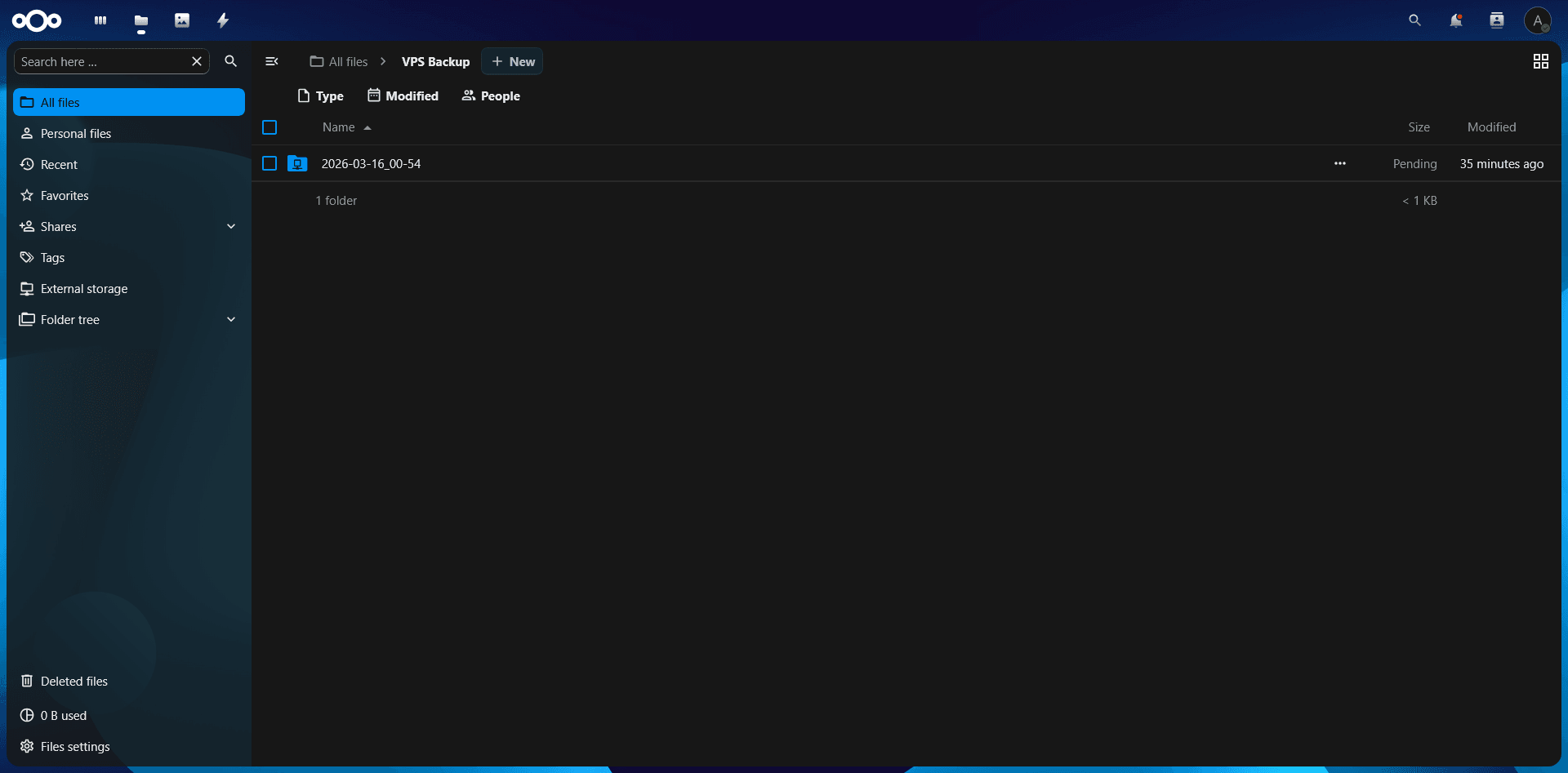
Click ✓ to save. Go to Files — you should see the VPS Backup folder. This folder is your R2 bucket — anything you see here is actually stored on Cloudflare's infrastructure, not your VPS.
Step 6 — Automate Backups with rclone
Nextcloud gives us a GUI to browse files, but the actual automated backup is handled by rclone — a command-line tool that syncs files directly to R2.
Install rclone
curl https://rclone.org/install.sh | sudo bashConfigure rclone
rclone configFollow the prompts:
n→ New remote- Name:
r2backup - Storage type:
s3 - Provider:
Cloudflare - Access Key ID: your key
- Secret Access Key: your key
- Endpoint:
https://<account_id>.r2.cloudflarestorage.com - Everything else: press Enter to accept defaults
y→ confirmq→ quit
Problem: CreateBucket 403 Access Denied
When testing, rclone tried to create a new bucket instead of using the existing one and got a 403 error. The fix:
rclone config update r2backup no_check_bucket trueTest the connection:
rclone ls r2backup:vps-backupNo output means the bucket is empty — that's fine.
The Backup Script
nano ~/backup.sh#!/bin/bash
DATE=$(date +%Y-%m-%d_%H-%M)
LOG=/var/log/rclone-backup.log
DEST="r2backup:vps-backup/$DATE"
MAX_BACKUPS=30
echo "[$DATE] Starting backup..." >> $LOG
# /root — your projects, scripts, and home directory configs.
# node_modules and .git are excluded: they're large, reproducible, and
# not worth the storage cost. Run npm install / git clone to restore them.
# .sock files are Unix sockets (PM2 IPC), not real files — rclone can't copy them.
rclone sync /root $DEST/root \
--exclude ".npm/**" \
--exclude "*/node_modules/**" \
--exclude "*/.git/**" \
--exclude ".pm2/logs/**" \
--exclude "**.sock" \
-L >> $LOG 2>&1
# /etc/nginx — all your virtual host configs (sites-available, sites-enabled).
# Without this, you'd have to manually recreate every reverse proxy config
# for every domain after a reinstall.
# -L flag is required: sites-enabled/ contains symlinks to sites-available/,
# not real files. Without -L, rclone skips them silently.
rclone sync /etc/nginx $DEST/nginx -L >> $LOG 2>&1
# /etc/letsencrypt — your SSL certificates issued by Certbot.
# Losing these means your domains show security warnings until you re-issue.
# Re-issuing is easy but has rate limits (5 certs per domain per week).
# Same -L requirement: Certbot's live/ folder uses symlinks to archive/.
rclone sync /etc/letsencrypt $DEST/letsencrypt -L >> $LOG 2>&1
# /root/.ssh — your SSH private keys, public keys, authorized_keys, and config.
# authorized_keys controls who can SSH into your server.
# config defines SSH aliases and per-host key routing (e.g. GitHub).
# Losing this means you'd be locked out or have to regenerate keys everywhere.
rclone sync /root/.ssh $DEST/ssh -L >> $LOG 2>&1
# /etc/ufw — your firewall rules.
# Without this, a fresh install has no firewall — all ports wide open
# until you manually recreate the rules.
rclone sync /etc/ufw $DEST/ufw -L >> $LOG 2>&1
# /etc/fstab — defines what gets mounted at boot, including your swap file.
# Without this, swap won't mount on reboot and you'll wonder why the VPS
# is running out of memory.
rclone copy /etc/fstab $DEST/system/ >> $LOG 2>&1
# /etc/sysctl.conf — kernel parameter overrides (e.g. vm.swappiness=30).
# Small file, easy to forget, annoying to redo manually.
rclone copy /etc/sysctl.conf $DEST/system/ >> $LOG 2>&1
echo "[$DATE] Backup completed!" >> $LOG
# Rotate: delete the oldest backup folder when we exceed MAX_BACKUPS.
# This keeps 30 days of history and prevents R2 storage from growing indefinitely.
BACKUP_COUNT=$(rclone lsd r2backup:vps-backup | wc -l)
if [ $BACKUP_COUNT -gt $MAX_BACKUPS ]; then
OLDEST=$(rclone lsd r2backup:vps-backup | sort | head -1 | awk '{print $NF}')
echo "[$DATE] Deleting oldest backup: $OLDEST" >> $LOG
rclone purge r2backup:vps-backup/$OLDEST >> $LOG 2>&1
fichmod +x ~/backup.sh
~/backup.sh
cat /var/log/rclone-backup.logSchedule Daily Backup at 2AM
crontab -eAdd:
0 2 * * * /root/backup.shYour backups will now run automatically every night. Open Nextcloud at https://cloud.yourdomain.com and navigate to VPS Backup — you'll see your dated backup folders right there in the GUI.
What Gets Backed Up (and Why)
Here's a breakdown of every path in the script and why each one matters.
/root — Your projects, scripts, and anything in the home directory. This is your actual work. node_modules and .git are intentionally excluded because they're large and fully reproducible — just run npm install or git clone again after a restore.
/etc/nginx — All your Nginx virtual host configs. Without this, after a reinstall you'd have to manually recreate the reverse proxy config for every single domain. The -L flag is critical here because sites-enabled/ contains symlinks pointing to sites-available/, not actual files — without -L, rclone skips them silently.
/etc/letsencrypt — SSL certificates issued by Certbot. Losing these causes browser security warnings on all your domains until you re-issue. Re-issuing is straightforward but Certbot has a rate limit of 5 certificates per domain per week. Same -L requirement applies since Certbot's live/ directory uses symlinks to archive/.
/root/.ssh — SSH private keys, public keys, authorized_keys, and the SSH config file. authorized_keys controls who can SSH into your server. The config file defines host aliases and key routing — for example, telling SSH to use a specific key when connecting to GitHub. Losing this means you'd be locked out or have to regenerate and re-register keys everywhere.
/etc/ufw — Firewall rules. A fresh Ubuntu install has no active firewall — all ports are open by default. Without this backup, you'd have to manually recreate every ufw allow rule after reinstalling.
/etc/fstab — Defines what gets mounted at boot, including your swap file. Without this, swap won't load after a reboot and your VPS will quietly run without it — something you might not notice until memory runs out under load.
/etc/sysctl.conf — Kernel parameter overrides like vm.swappiness=30. A small file, easy to forget, annoying to track down and redo manually.
What's intentionally not backed up:
node_modules/— reproducible withnpm install.git/— your code lives on GitHub, just clone it.sockfiles — Unix sockets used by PM2 for IPC, not real files- Nextcloud's MariaDB volume — Nextcloud's actual data (your files) lives on R2, not in the DB
Closing Thoughts
Setting this up took a few hours, but it's the kind of thing you only regret not doing after something goes wrong. If my provider's backup system had worked, I wouldn't have lost anything. But relying on someone else's system is exactly the problem.
With this setup, I have 30 rolling daily snapshots stored on Cloudflare R2, visible through a clean Nextcloud GUI, and completely independent of my VPS provider.
If you lose your VPS tomorrow, you can spin up a new one, restore from R2, and be back online in under an hour.
If you run into any issues setting this up, feel free to reach out through the contact section on my portfolio. I went through the same problems and I'm happy to help you work through them.